
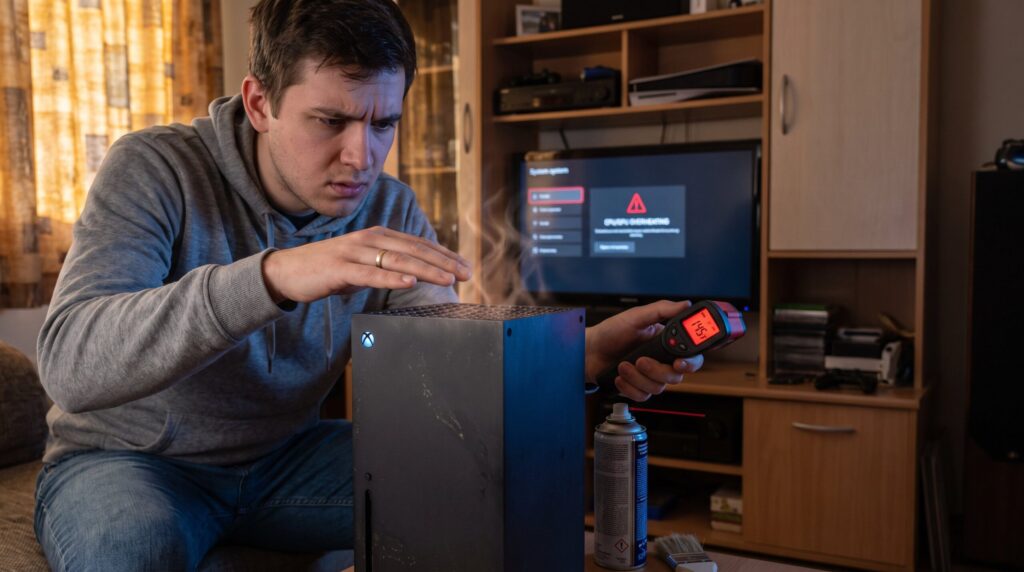
Xbox overheating is a common cause of sudden shutdowns, thermal warnings, and long-term hardware damage. Gamers who ignore rising case temperatures risk thermal throttling, degraded performance, and in worst cases a failed APU or SSD. This guide explains exactly why consoles run hot, clear warning signs to watch for, and concrete steps players can take to prevent irreversible hardware failure. It assumes readers want practical fixes they can test at home and when to escalate to professional repair.
Table of Contents
ToggleKey Takeaways
- Xbox overheating occurs when the console cannot dissipate heat faster than it is generated, leading to shutdowns and hardware damage.
- Regularly clean dust from vents and fans every 2–3 months to maintain proper airflow and prevent thermal buildup.
- Position your Xbox on a hard, flat surface with ample ventilation, avoiding enclosed spaces and heat traps to reduce overheating risk.
- Limit long gaming sessions by taking 15–20 minute breaks every 2–3 hours to allow the console to cool down and reduce thermal stress.
- Watch for warning signs like loud fan noise, persistent high CPU/GPU usage, and thermal warnings to prevent irreversible hardware failure.
- If cleaning and simple measures don’t resolve overheating, seek professional repair to address failing fans, degraded thermal paste, or faulty components.
What Causes An Xbox To Overheat?
Fact first: an Xbox overheats when it cannot move heat away from critical components faster than they generate it. That imbalance causes higher chip temperatures, fan overwork, thermal throttling and sometimes shutdowns.
Common Hardware And Environmental Causes
Dust, blocked vents and failing fans top the list. Dust builds up on heatsink fins and fan blades, reducing airflow and insulating hot surfaces: a visible gray film on vents often means airflow is down 30–50%. Fans with worn bearings spin slower and make grinding noises: when RPM drops, the console’s cooling curve fails to meet demand. Degraded thermal paste or compressed thermal pads reduce heat transfer from the APU and GPU to the heatsink: after 5–8 years of use, many consoles show measurable thermal paste breakdown. High ambient temperature also matters: a console in a 30°C living room will run significantly hotter than the same unit in a 20°C room. Placement matters too, enclosed TV cabinets, carpeted floors and direct sunlight trap heat and block exhaust.
Concrete scenario: a player in a small apartment placed an Xbox inside a closed shelf. After two hours of a raid, the top vent felt like a hot oven and the console shut down. Cleaning vents reduced surface temperature by roughly 6–8°C during the same workload.
Software And Usage-Related Causes
Software can push thermals into unsafe territory. Background downloads, system updates, and too many running apps increase APU load even when the player isn’t in a demanding game. Some game updates introduce CPU/GPU bugs that drive higher utilization: in one community report, a badly optimized title caused frame drops and sustained 98% GPU usage for extended sessions. Long marathon sessions without breaks let heat accumulate: the cooling system can keep up in short bursts but not under sustained peak loads. Faulty power-management components or third-party accessories that misdirect airflow can also raise internal temperatures. Players should note loud, constant fan speed and persistent high CPU/GPU usage in the performance overlay as red flags.
How To Prevent Hardware Failure And Respond To Warning Signs
Answer up front: prevention focuses on airflow, cleanliness, sensible usage and getting repairs before damage spreads. If warning signs appear, stop heavy use and follow targeted checks.
Practical placement and airflow
- Place the Xbox on a hard, flat surface with at least several centimeters of clearance on every vented side. Avoid enclosed cabinets and stacked electronics that trap exhaust. If the living room is warm, move the console to a cooler spot or use an open shelving arrangement where ambient air can circulate freely.
Cleaning and maintenance
- Clean external vents every 2–3 months with compressed air and a soft brush. Do not spray compressed air directly into fan bearings at close range: short bursts at an angle are safer. For heavy dust inside the case, a professional cleaning every 1–2 years is prudent, experienced technicians can safely remove the cover, blow out heatsink fins, and reapply thermal paste if needed.
Monitor software and usage
- Close background apps and pause downloads during intense sessions. Install system updates when you’re not gaming. Limit marathon sessions: a 15–20 minute cooling break every 2–3 hours reduces average internal temperatures by several degrees and limits cumulative thermal stress. Gamers who stream and play simultaneously should consider reducing stream encoding quality to lower APU load.
Responding to warning signs
- If the console surface is unusually hot, the fan runs at max continuously, or the system shows on-screen thermal warnings, immediately stop playing and power down. Persistent shutdowns or on-screen messages require repair: damaged thermal paste, failing fans, or faulty power components must be inspected. Continuing to run a hot console risks permanent SSD or APU damage.
When to seek professional help
- If cleaning and simple fixes don’t stop warnings, seek repair. For people who want step-by-step repair advice or want to learn safe diagnostic checks, the site offers an in-depth resource that covers teardown basics and common fixes. Consult the repair overview for guidance on safe disassembly and when to escalate to a technician.
Accessory and warranty notes
- Avoid third‑party cooling attachments that obstruct vents or change airflow direction. Use official power supplies and accessories where possible. If the console is under warranty, contact the manufacturer before opening the case: unauthorized repairs can void coverage.
Real lesson: one player replaced a noisy fan after months of ignoring grinding sounds. The console ran 9–11°C cooler under the same load, restored stable frame rates, and stopped producing sudden shutdowns. That small repair prevented a later, costlier SSD replacement.
Conclusion
Clear takeaway: address Xbox overheating early, check placement, clean vents, watch for persistent fan noise and thermal warnings, and limit marathon sessions. Minor maintenance often restores normal thermals: persistent warnings require professional inspection. Gamers who act fast protect expensive components and keep performance steady for years.